
How to Edit Travel Photos Like a Professional
Editing travel photos like a professional doesn’t require expensive gear or years of training—just the right techniques and a clear workflow. Whether you’re sharing memories on social media or printing a photo book, thoughtful editing enhances colors, sharpens details, and brings out the mood of your journey. This guide walks you through essential steps, tools, and tips to transform ordinary snapshots into compelling images that capture the spirit of your travels.
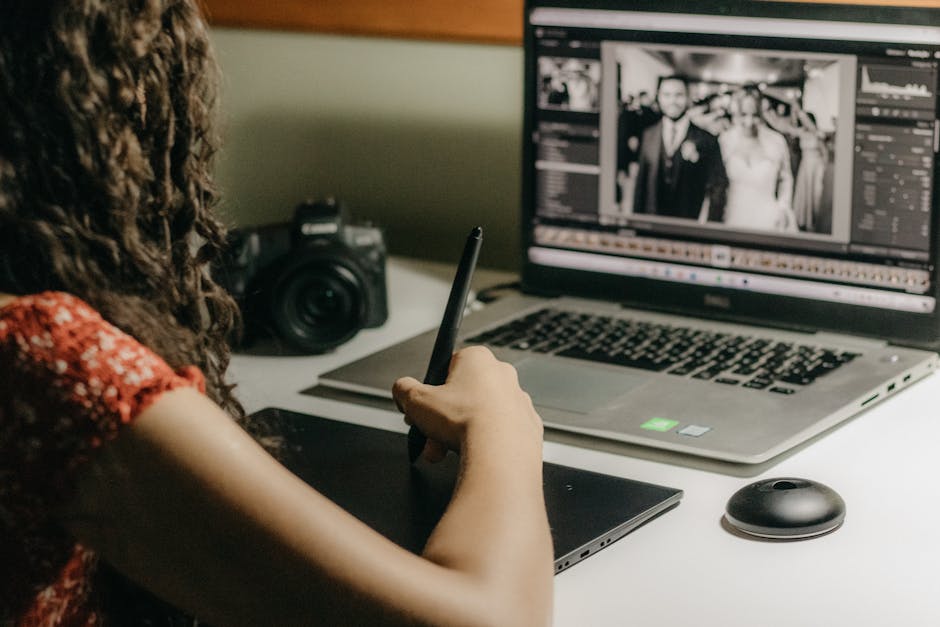
Why Editing Matters for Travel Photography
Travel photos often face challenging lighting—harsh midday sun, dim interiors, or mixed artificial light. Even the best cameras can’t perfectly capture scenes in-camera. Editing corrects exposure, balances colors, and removes distractions, allowing your subject—whether a bustling market or a quiet mountain lake—to shine. Professional-looking edits also create consistency across your photo set, making albums or social feeds more polished and engaging.
Essential Tools for Professional Travel Photo Editing
You don’t need a high-end computer or complex software to edit effectively. Many powerful tools are accessible and user-friendly:
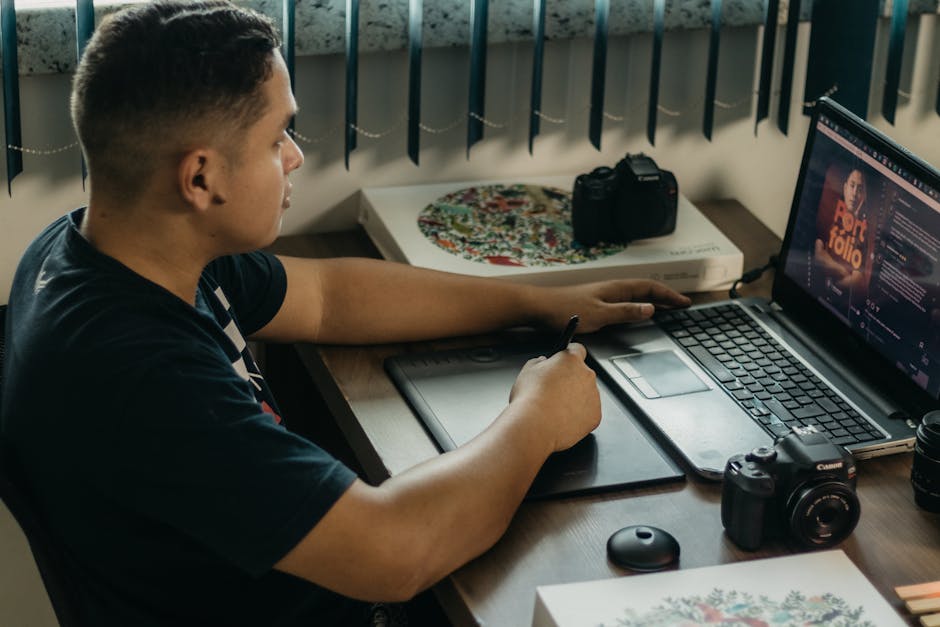
- Adobe Lightroom Classic: The industry standard for photo organization and non-destructive editing. Ideal for batch processing and color grading.
- Adobe Lightroom Mobile: Great for on-the-go editing with cloud sync across devices.
- Snapseed (Free, Mobile): A surprisingly capable app with selective adjustments and healing tools.
- Capture One: Preferred by some professionals for superior color control and tethering.
- Darktable (Free, Desktop): A robust open-source alternative to Lightroom.
For most travelers, Lightroom Mobile or Snapseed offers the best balance of power and convenience.
Step-by-Step Workflow to Edit Travel Photos Like a Professional
Follow this streamlined process to maintain consistency and efficiency:
1. Organize and Cull First
Before editing, review your shots and delete blurry, redundant, or poorly composed images. Keep only the strongest 10–20% of your total shots. This saves time and helps you focus on quality over quantity.
2. Adjust Exposure and White Balance
Start with global adjustments. Set proper exposure so shadows aren’t crushed and highlights aren’t blown out. Correct white balance to reflect the true color of the scene—warm for golden hour, neutral for daylight. Avoid extreme shifts unless aiming for a stylistic effect.
3. Enhance Contrast and Clarity
Use the contrast slider to add depth, but avoid overdoing it. For landscapes, increase clarity slightly to bring out texture in rocks or foliage. For portraits, reduce clarity to soften skin. Use the “dehaze” tool sparingly—it can add drama to skies but may introduce noise.
4. Refine Colors with HSL and Color Grading
Hue, Saturation, and Luminance (HSL) controls let you fine-tune individual colors. Boost the saturation of blue skies or green forests subtly. Lower the luminance of distracting bright colors like neon signs. Use color grading to add cinematic tones—cool shadows and warm highlights work well for travel scenes.
5. Apply Local Adjustments
Use radial filters, graduated filters, or brushes to adjust specific areas. Brighten a subject’s face, darken an overexposed sky, or sharpen details in architecture. Avoid over-editing—subtlety preserves realism.
6. Sharpen and Reduce Noise
Apply sharpening in the final step, especially for prints or large displays. Use masking to limit sharpening to edges only. If your photo was taken in low light, reduce luminance noise but preserve detail by balancing the noise reduction slider.
7. Crop and Straighten for Impact
Use the rule of thirds or leading lines to improve composition. Straighten horizons—crooked skies distract viewers. Leave room in the direction your subject is facing or moving.
Common Mistakes to Avoid
Even experienced editors fall into traps. Watch out for:
- Over-saturation: Vibrant colors are appealing, but unnatural hues (e.g., purple skies or neon green trees) break realism.
- Excessive vignetting: A subtle vignette can draw focus, but heavy darkening around edges looks dated.
- Ignoring noise in shadows: Boosting exposure in dark areas often reveals grain. Use noise reduction or accept some texture.
- Editing every photo the same way: Each scene has unique lighting and mood. Copy-paste presets, then tweak for context.
When to Use Presets (and When Not To)
Presets can speed up your workflow, especially when editing multiple photos from the same location. They’re great starting points—but never final solutions. Always adjust exposure, white balance, and cropping after applying a preset. Avoid using the same preset across vastly different lighting conditions (e.g., a sunset preset on a cloudy beach photo).
Editing for Different Platforms
Tailor your edits to where the photo will be seen:
| Platform | Recommended Settings |
|---|---|
| Square or 4:5 aspect ratio; boost contrast and saturation slightly; ensure faces are well-lit. | |
| Print (Photo Books, Frames) | Use high resolution (300 DPI); avoid heavy sharpening; check color accuracy with soft proofing. |
| Web (Blogs, Websites) | Optimize file size (72 DPI, JPEG under 500KB); maintain clarity without oversharpening. |
Final Tips for Consistent, Professional Results
- Shoot in RAW format when possible—it retains more detail for editing.
- Calibrate your monitor to ensure accurate colors.
- Save custom presets for frequent scenarios (e.g., “Golden Hour Portrait” or “Urban Night”).
- Step away from your edits for a few hours before finalizing—fresh eyes catch over-editing.
FAQ
What’s the best free app for editing travel photos?
Snapseed is the top free choice for mobile editing. It offers advanced tools like selective adjustments, healing, and curves, all in an intuitive interface.
Should I edit photos on my phone or computer?
It depends on your needs. Phones are great for quick edits and sharing. Computers offer larger screens and more precise control—ideal for detailed work or batch editing.
How do I avoid making my photos look over-edited?
Less is more. Make small adjustments and zoom out frequently to check the overall look. Avoid extreme sliders, and always compare before-and-after views.
Editing travel photos like a professional is about enhancing reality—not replacing it. With the right tools, a clear process, and attention to detail, your images can vividly convey the beauty and emotion of your adventures.